

This document contains content originally developed by IWL and is now authorized for use by SegueSoft, Inc. pursuant to the acquisition agreement.
The Workgroup FortLM License Server can run on either a Linux or Windows server. This guide covers installation on a Linux system.
A SilverCreek workgroup installation consists of two steps: installing the license server and installing SilverCreek clients. If you have already installed the server and are ready to install SilverCreek clients, click here for Windows clients and Linux clients.
The FortLM license server should be installed on a stable computer. Almost all desktop computers can be used to host the SilverCreek FortLM license server. No special hardware is required for a server computer. The server does not need to be a high-end machine because the license server only serves licenses.
Download SilverCreek FortLM license server for Linux (Fedora, RHEL, Unbuntu 18+, Debian 10+ and OpenSuSE 15+):
- Go to https://download.seguesoft.com
- Enter your username and password
- Download the SilverCreek license server (FortLM) for Linux
Install the SilverCreek FortLM License Server
- Extract the package from the downloaded file tar -zvx –no-same-owner -f your-downloaded-gzipped-tarfile. For example:
# tar -zxv –no-same-owner -f IWL-License-Server-2023.230405-linux_x64.tar.gz - The SilverCreek FortLM license server files will be extracted into a directory
Verify that the extracted files have the correct ownership. If the license server will run as a service or under root, ensure they are owned by root. Otherwise run the following command to update all files’ ownership to root:
# chown -R root:root IWL-License-Server-2023.230405
# ls -la IWL-License-Server-2023.230405
total 9144
drwxr-xr-x 2 root root    4096 Apr  5  2023 .
drwxr-xr-x 4  497 2010    4096 Sep 30 10:12 ..
-rwxr-xr-x 1 root root 3080520 Apr  5  2023 flmid
-rwxr-xr-x 1 root root 3145689 Apr  5  2023 flmserver
-rwxr-xr-x 1 root root 3087119 Apr  5  2023 flmstat
-rwxr-xr-x 1 root root   23221 Apr  5  2023 IWL_LICENSE_AGREEMENT.TXT
-rwxr-xr-x 1 root root     272 Apr  5  2023 iwl_pubkey.pem
-rwxr-xr-x 1 root root    2362 Apr  5  2023 README_FORTLM.txt
-rwxr-xr-x 1 root root     932 Apr  5  2023 start.sh
Get the host ID of the license server machine
- Move to the newly created directory and invoke the server by typing (e.g.):
cd /opt/IWL-License-Server-2023.230405
./start.sh - The start.sh shell scripts will print out your hostID, for example: “The hostID of this machine is 8022c723”
The hostID can also be obtained by executing the command “./flmid” in the same directory. - Email this host ID to support@seguesoft.com, and a license file will be generated and emailed to you.
Install the SilverCreek FortLM license file you received
- First, open the file called fortlm_license.lic that was emailed to you.
- Next, edit the SERVER line:
SERVER=hostname_or_IP; PORT=port_no; IP=v4; ANYIF=No;
Where <hostname_or_IP> should be replaced with the hostname or IP address of the license server computer, and
<port_no> should be replaced with a free port number. Note, you should pick a port number > 1024 to avoid using privileged/restricted ports.
For example, after editing, if using an IP address, the first line will look like:
SERVER=192.168.2.2; PORT=4545; IP=v4; ANYIF=No;
If using hostname, that line will look like:
SERVER=calypso.myorg.com; PORT=4545; IP=v4; ANYIF=No;
Keep other parts unchanged and then save fortlm_license.lic as a text format file in the top directory of the installed license server package. - Note: You need to change “IP=v4” to “IP=v6” if you are running on an IPv6 server. If you change “ANYIF=NO;” to “ANYIF=YES;”, then the server will listen to any interface on this server computer.
Start the FortLM license server
- Start the license server, from the top directory of the installed license server package, issue the following command:
./start.sh - Alternatively, you can run FortLM server “flmserver” directly, type:
./flmserver ./fortlm_license.lic ./iwl_pubkey.pem
If the installation was successful, you will see a message as shown below:
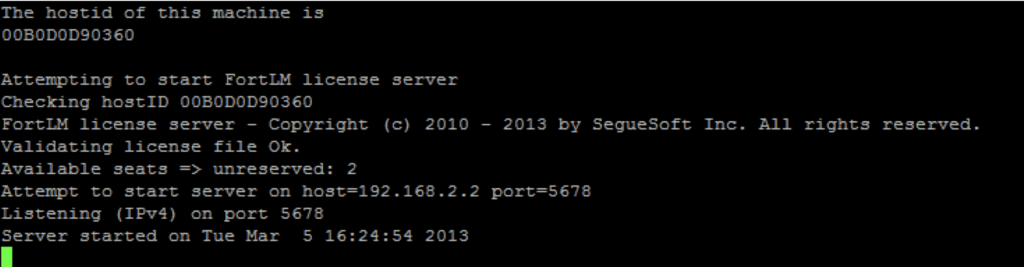
Congratulations!
Now that you have successfully installed the SilverCreek FortLM license server for Linux, you can proceed to install the SilverCreek application on a Windows or Linux client computer.
Run IWL FortLM license server as a systemd service
We provide a complete example to automatically restart the IWL license server whenever it stops. As long as the license server is restarted within 12 hours, active SilverCreek clients won’t be affected, allowing your team to continue working without interruptions.
1) In this example, IWL license server is installed in /opt/IWL-License-Server-2023.230405
Updating start.sh to use full path to start the flmserver program as shown below:
root # cat /opt/IWL-License-Server-2023.23040/start.sh
/opt/IWL-License-Server-2023.230405/flmserver /opt/IWL-License-Server-2023.230405/fortlm_license.lic /opt/IWL-License-Server-2023.230405/iwl_pubkey.pem
2) Create a new systemd service file: /etc/systemd/system/iwlserver.service
root~# cat /etc/systemd/system/iwlserver.service
[Unit]
Description=SilverCreek FortLM License Server
After=network.target
[Service]
Type=simple
ExecStart=/opt/IWL-License-Server-2023.230405/start.sh
Restart=always
RestartSec=10s
User=root
Group=root
[Install]
WantedBy=multi-user.target
Note we used:
Restart=always (always restart the server if is exits)
RestartSec=10s (after 10 seconds).
Using “Restart=on-failure” wouldn’t work because /opt/IWL-License-Server-2023.230405/start.sh is a script that invokes another process flmserver.
However, if we modify the service file to invoke the flmserver directly, instead of using ExecStart=/opt/IWL-License-Server-2023.230405/start.sh, as shown below
ExecStart=/opt/IWL-License-Server-2023.230405/flmserver /opt/IWL-License-Server-2023.230405/fortlm_license.lic /opt/IWL-License-Server-2023.230405/iwl_pubkey.pem
It then should work with Restart=on-failure.
3) After creating your new systemd service iwlserver.service, reload the service unit:
root# systemctl daemon-reload
4) Enable the service
root# systemctl enable iwlserver.service
5) Now start the service
root# systemctl start iwlserver.service
5) Check if the service started successfully by running the command below and examining the service log:
root# journalctl -fu iwlserver.service