

This document contains content originally developed by IWL and is now authorized for use by SegueSoft, Inc. pursuant to the acquisition agreement.
The Workgroup FortLM License Server can run on either a Linux or Windows server. This guide covers installation on a Windows system.
A SilverCreek workgroup installation consists of two steps: installing the license server and installing SilverCreek clients. If you have already installed the server and are ready to install SilverCreek clients, click here for Windows clients and Linux clients.
The FortLM license server should be installed on a stable computer. Almost all desktop computers can be used to host the SilverCreek FortLM license server. No special hardware is required for a server computer. The server does not need to be a high-end machine because the license server only serves license requests.
Download SilverCreek FortLM license server for Windows 10 and newer:
- Go to https://download.seguesoft.com
- Enter your username and password
- Download the SilverCreek license server for Windows
Note: If clicking on the download link is blocked, you may need to right-click the link and select ‘Save Link As…‘.
Please ignore the file “can’t be downloaded securely” or “unknown publisher” warning and click ‘Keep‘ or ‘Run Anyway‘ to proceed
Run the self-extractable installation binary
- Double-click the self-executable installer to begin the installation process. If the installer is in a zipped format, extract it first.
- A setup wizard will guide you through the rest of the installation process.
Get the hostID of the server machine
- You can start the license server via:
- Start -> Programs -> SilverCreek Fort LM License Server -> start.bat
- The application will prompt you for a license file and also provide you with a host ID in a DOS Prompt.
The server host ID can also be obtained by executing the command “flmid” found in your SilverCreek FortLM License server installation directory. - Email the host ID to support@seguesoft.com
- We will generate a license file and email it to you.
Install the SilverCreek FortLM license file you received
- First, open the file called fortlm_license.lic that was emailed to you.
- Next, edit the SERVER line:
SERVER=hostname_or_IP; PORT=port_no; IP=v4; ANYIF=No;
Where <hostname_or_IP> should be replaced with the hostname or IP address of the license server computer, and
<port_no> should be replaced with a free port number. Note, you should pick a port number > 1024 to avoid using privileged/restricted ports.
For example, after editing, if using an IP address, the first line will look like:
SERVER=192.168.2.2; PORT=4545; IP=v4; ANYIF=No;
If using hostname, that line will look like:
SERVER=calypso.myorg.com; PORT=4545; IP=v4; ANYIF=No;
Keep other parts unchanged and then save fortlm_license.lic as a text format file in the top directory of the installed license server package. - Note: You need to change “IP=v4” to “IP=v6” if you are running on an IPv6 server. If you change “ANYIF=NO;” to “ANYIF=YES;”, then the server will listen to any interface on this server computer.
Start the FortLM license server
Start the server through Start -> Programs -> SilverCreek FortLM License Server -> start.bat
Alternatively, you can run FortLM server “flmserver” directly, open a DOS prompt, go into the installation directory “Program Files\InterWorkingLabs\SilverCreekFortLMLicenseServer”, and issue the following command:
flmserver fortlm_license.lic iwl_pubkey.pem
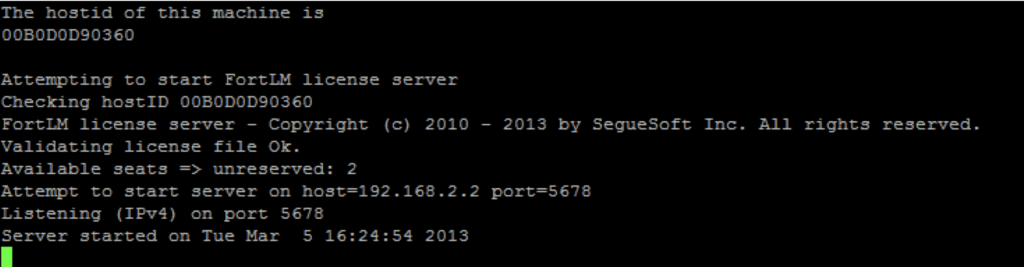
If the installation was successful, you will see a message as shown below:
Congratulations!
Now that you have successfully installed SilverCreek FortLM license server for Windows, you can proceed to install the SilverCreek application on a Windows or Linux client computer.